


Screen Mirroring App: Mirror Your iPhone or Android to a Smart TV

Show photos, video calls, presentations and games on the big screen in 1080p, with sound on the TV. No cables, no Chromecast, no Apple TV.

Download on the App StoreGet it on Google Play
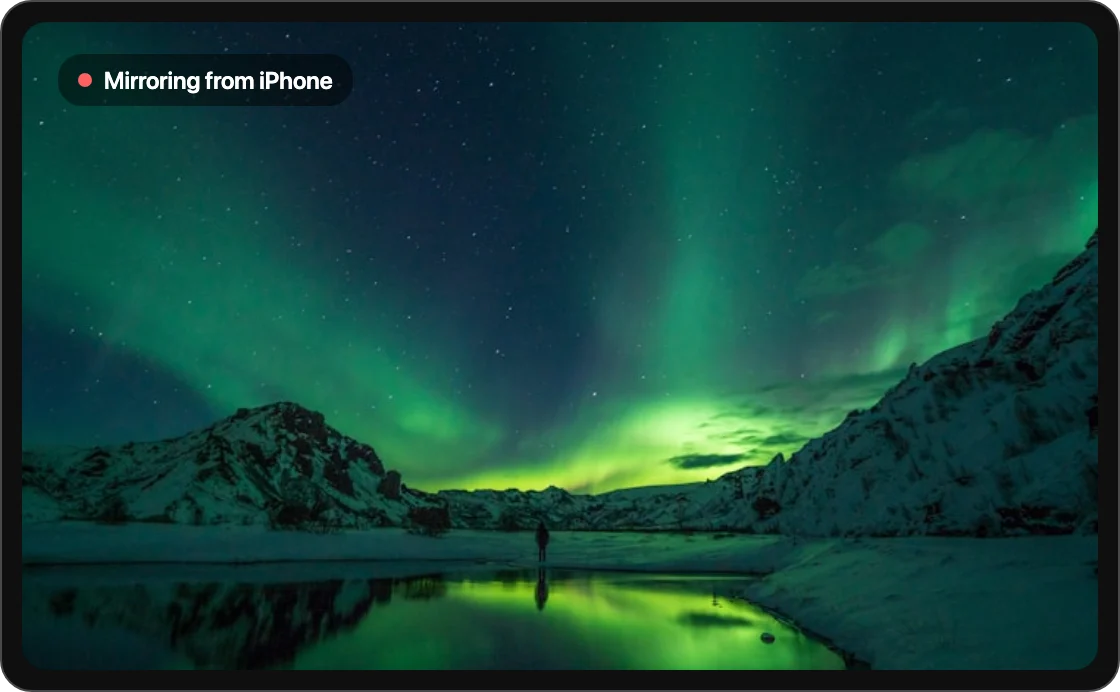
TV showing a phone screen being mirrored from an iPhone
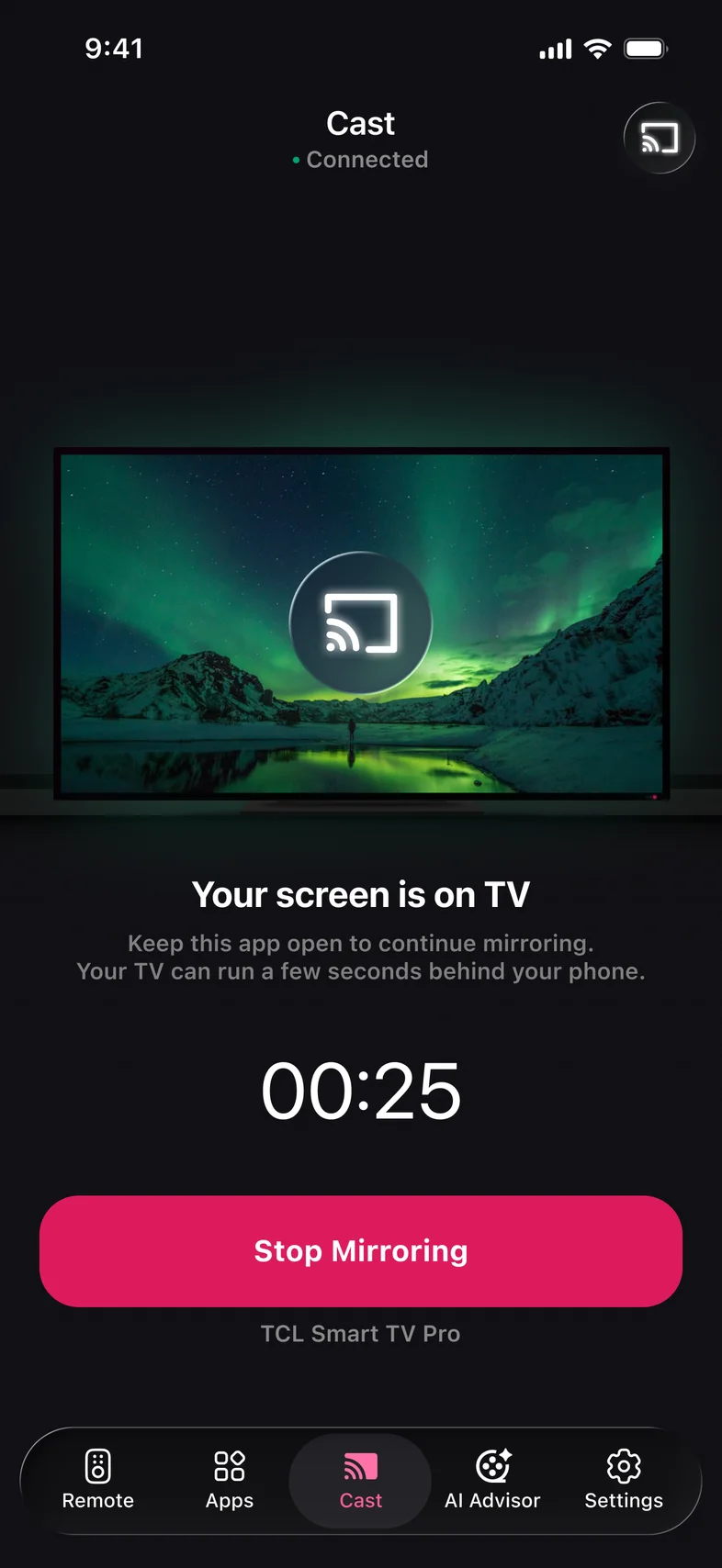
Kliky app: Screen Mirroring in progress with a Stop Mirroring button

Why mirror with Kliky

  • Full HD, auto quality

    Up to 1080p. Quality adapts to your Wi‑Fi to keep the picture moving on a slower network.

  • Sound on the TV

    Audio plays through TV speakers or your soundbar, in sync with the picture.

  • Stop anytime

    End mirroring from the app or from the notification on your phone. The TV goes back to what it was showing.

How to mirror your phone to a TV

  1. Step 1

    Connect to the same Wi‑Fi

    Your phone and TV must be on one network. 5 GHz gives the smoothest picture.

  2. Step 2

    Open Mirror and pick your TV

    Kliky lists every compatible TV it finds on your network.

  3. Step 3

    Tap Start Mirroring

    Confirm the system prompt. Your screen appears on the TV.

What is screen mirroring?

Screen mirroring shows exactly what’s on your phone on your TV in real time: apps, photos, games, even the home screen. It works over your home Wi‑Fi, so you don’t need an HDMI adapter. Smart TVs accept mirroring through one of several protocols: AirPlay, Miracast, DIAL or DLNA.

Kliky picks the right protocol for your TV automatically. You never have to know which one your Samsung, LG or Roku uses. You tap one button and the picture appears.

Screen mirroring vs casting: what’s the difference?

With casting, your phone sends a link and the TV plays the video itself. That’s great for YouTube or Netflix, and your phone stays free. With mirroring, the phone streams its whole screen, which you need for photos, presentations, games and apps that can’t cast.

  • Use casting for long videos. It saves battery and keeps quality high.
  • Use mirroring for anything interactive or anything that isn’t a video.

How to mirror an iPhone to a TV without Apple TV

Many 2019+ Samsung, LG, Sony and Vizio TVs support AirPlay 2 natively. For every other TV, Kliky converts your iPhone’s screen recording into a stream the TV understands:

  1. Open Kliky and tap Mirror.
  2. Select your TV, then tap Start Broadcast in the iOS prompt.
  3. Rotate your iPhone for full‑screen landscape video.

How to mirror Android to a TV

Android phones mirror through the same flow.

Why is screen mirroring lagging or black?

Lag almost always comes from Wi‑Fi congestion. Move your phone to the 5 GHz band and close other streams. A black screen with sound means the app you’re showing blocks mirroring for copyright reasons. Netflix and Disney+ do this, so cast them instead.

Screen mirroring questions

Is screen mirroring free in Kliky?

Kliky is free to download and the remote is free to use. Screen Mirroring is one of the extra features offered with the optional subscription inside the app.

Why can’t I mirror Netflix?

Netflix, Disney+ and some other apps block screen mirroring to protect copyrighted video, so the TV shows a black screen with sound. Open those apps on the TV itself and use Kliky as the remote.

Does mirroring work on Roku?

Mirroring works with TVs and devices that accept an AirPlay, Miracast or DLNA stream. Check your TV in the TV Compatibility Checker.

How much battery does mirroring use?

Mirroring keeps the screen on and encodes video the whole time, so it uses more battery than normal use. For long sessions, keep the phone plugged in.

Can I mirror without Wi‑Fi?

No. Your phone and TV need to be on the same Wi‑Fi network.

Put your phone on the big screen

Scan to download Kliky and start mirroring in under a minute.

Download on the App StoreGet it on Google Play
Scan to download