 Kliky
KlikyEverything Kliky does
One app replaces the remote that came with your TV and adds what a plastic remote cannot do: typing, voice, your phone’s screen and photos on the TV, and ideas for what to watch.


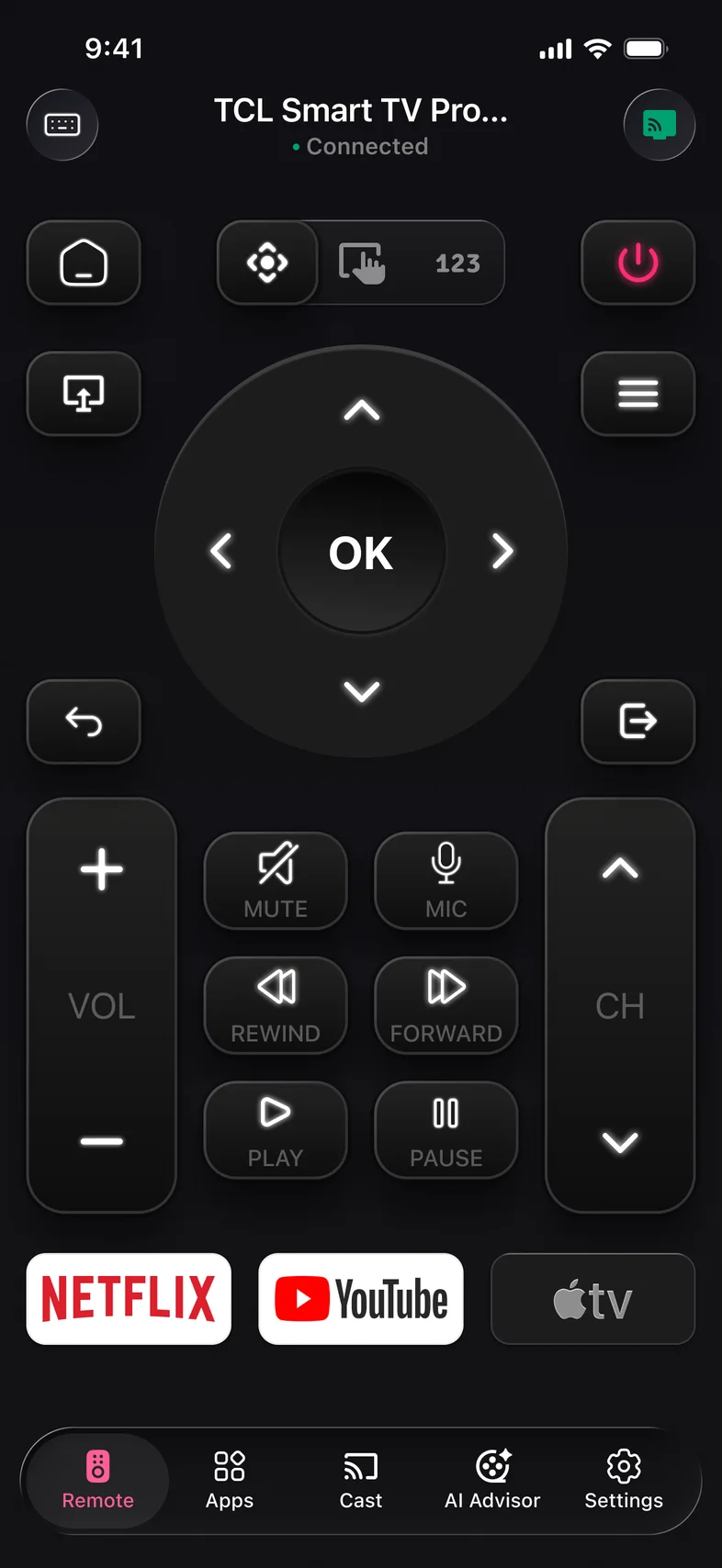
Remote Control
D‑pad, volume, channels, playback and a number pad, in a layout made for your TV brand.
- The whole remote. D‑pad and OK, volume, channels, mute, home, back, menu, input, play and pause, plus a number pad.
- A layout for your TV. Samsung, LG, Sony, Roku, Fire TV, Philips, Hisense, Vizio and Google TV each get a familiar button layout.
- Touchpad, keyboard and voice. Swipe to move around menus, type searches with your phone keyboard, or tap the mic and say it.
Screen Mirroring
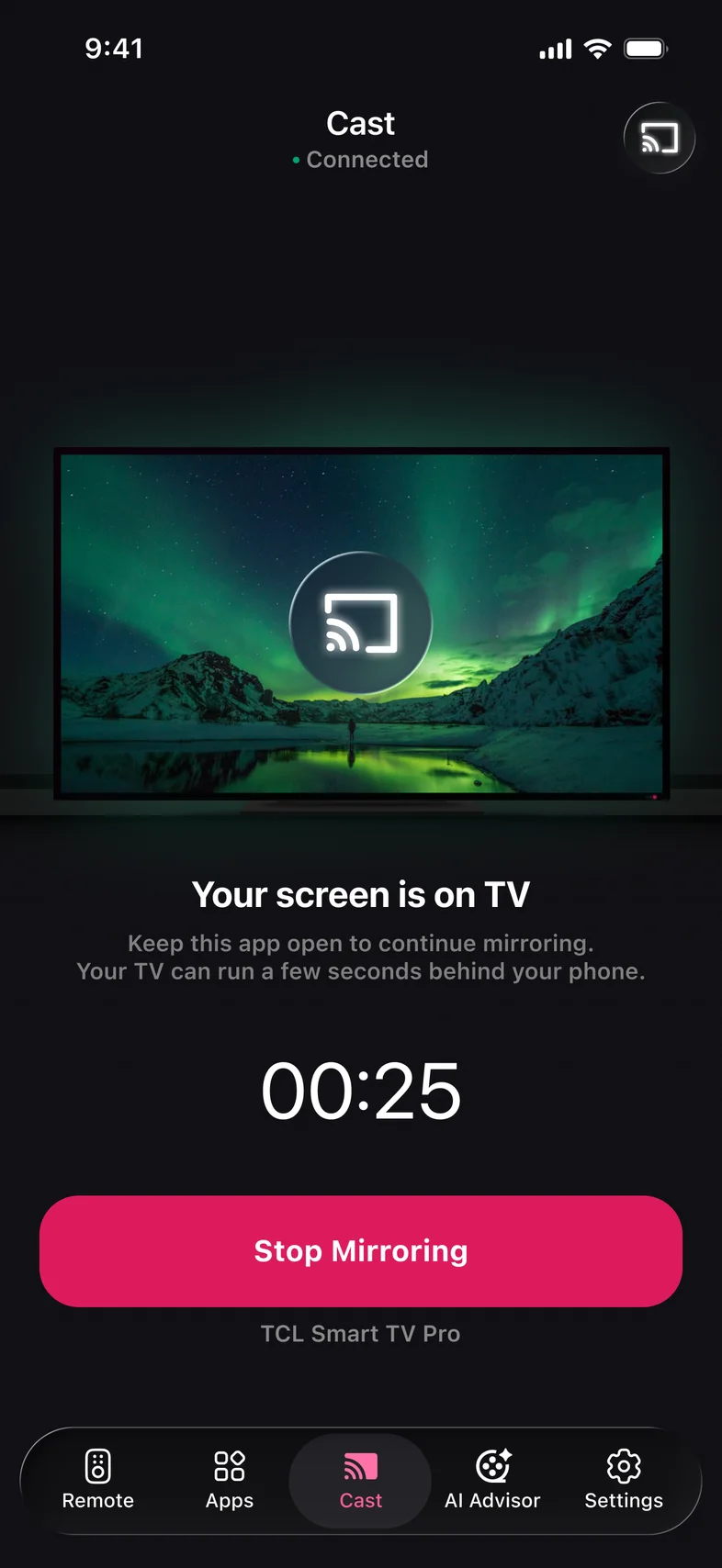
Show your iPhone or Android screen on the TV over Wi‑Fi. No cables, no Chromecast, no Apple TV.
- Full HD, auto quality. Up to 1080p. Quality adapts to your Wi‑Fi to keep the picture moving on a slower network.
- Sound on the TV. Audio plays through TV speakers or your soundbar, in sync with the picture.
- Stop anytime. End mirroring from the app or from the notification on your phone. The TV goes back to what it was showing.
Cast Photos & Video
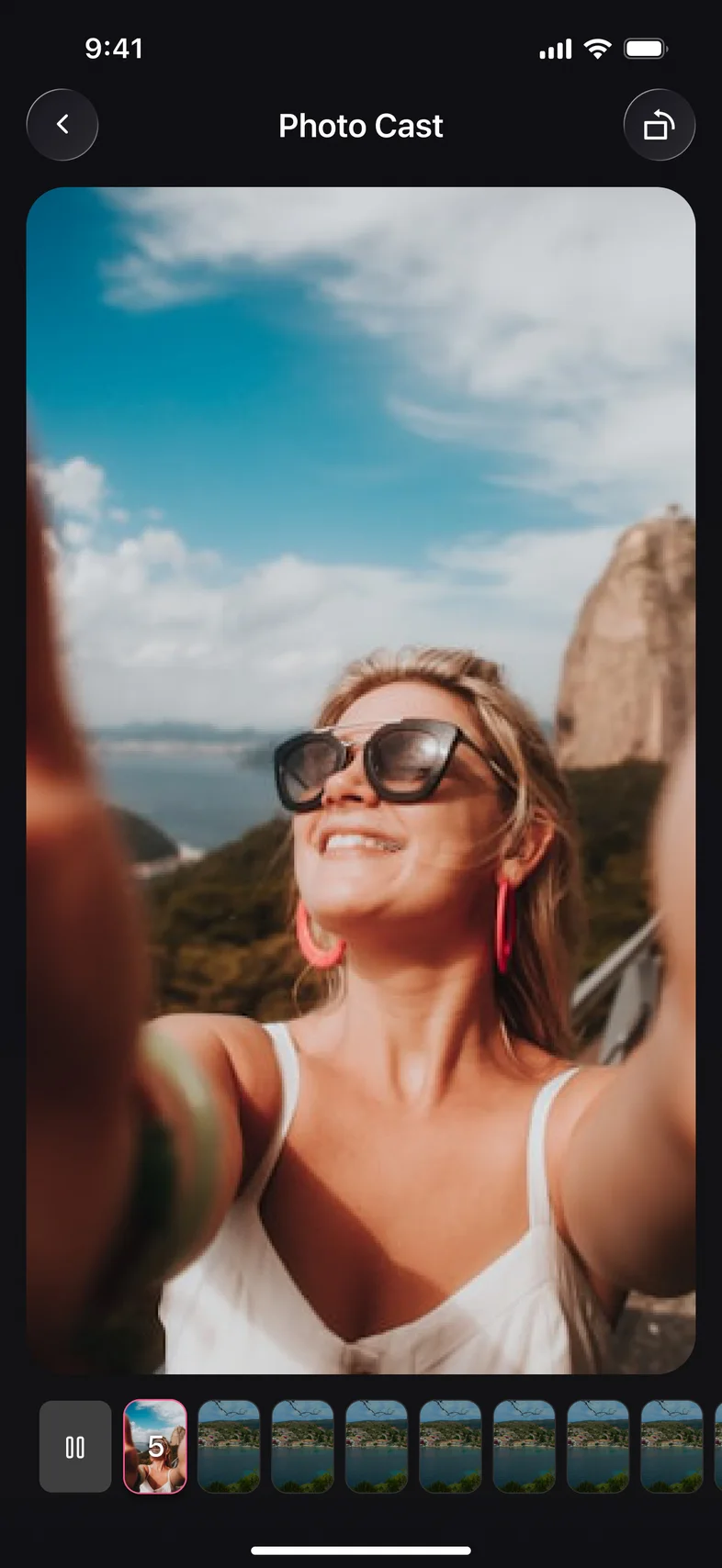
Pick from your gallery and play it full‑screen on the TV. Pause, skip or jump to any photo.
- Full‑screen on the TV. Photos and videos fill the big screen, so everyone on the sofa can see them.
- Slideshow you control. Play or pause the slideshow and tap any thumbnail to jump straight to that photo.
- Over your home Wi‑Fi. Nothing to plug in. Your phone and TV only need to be on the same network.
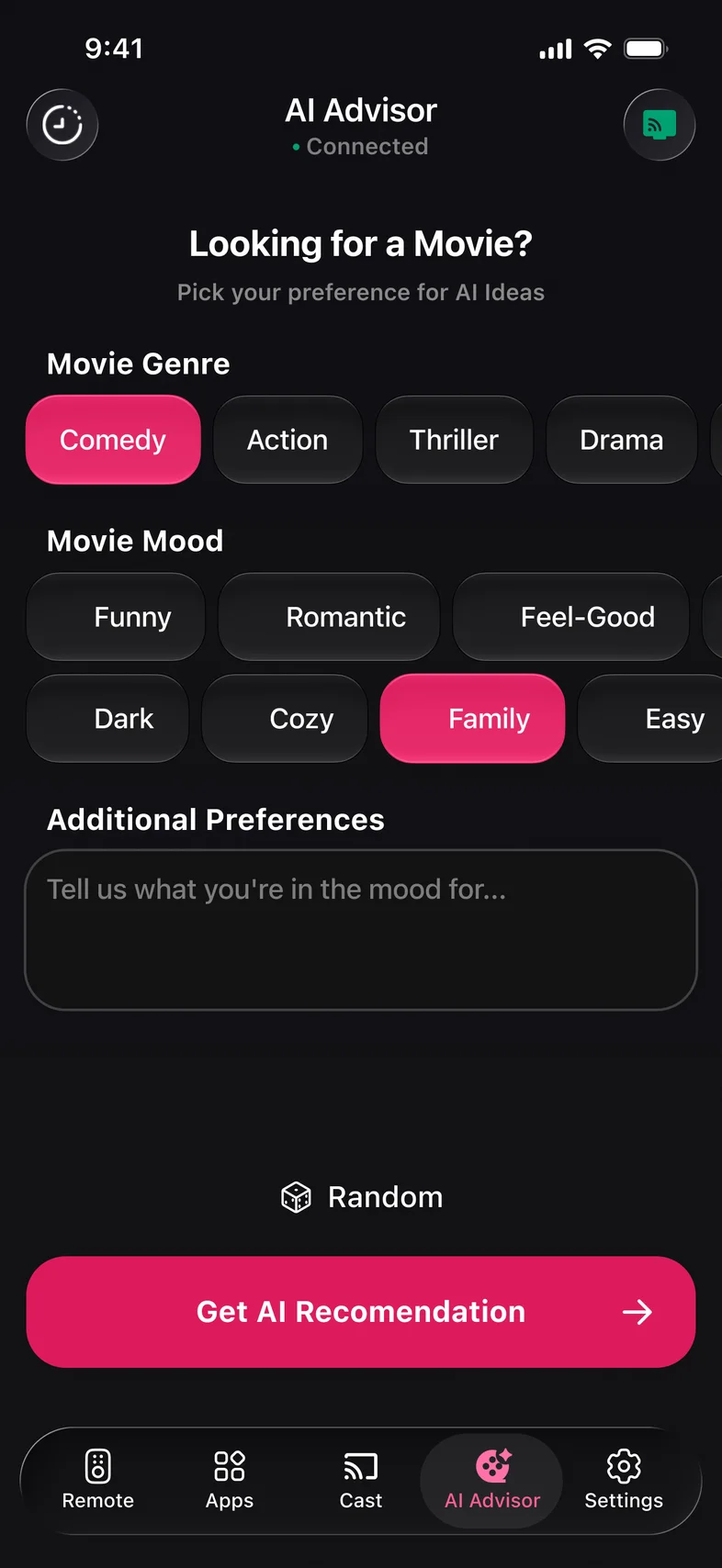
AI Advisor
Tell AI Advisor your mood and get movies and shows with IMDb ratings and running time.
- Tell it your mood. Tap a few tags or type what you feel like watching in your own words.
- Picks with IMDb ratings. Every suggestion shows its IMDb rating, running time and a short summary.
- Every pick saved. Your recommendations stay in History. Swipe to delete the ones you don’t need.
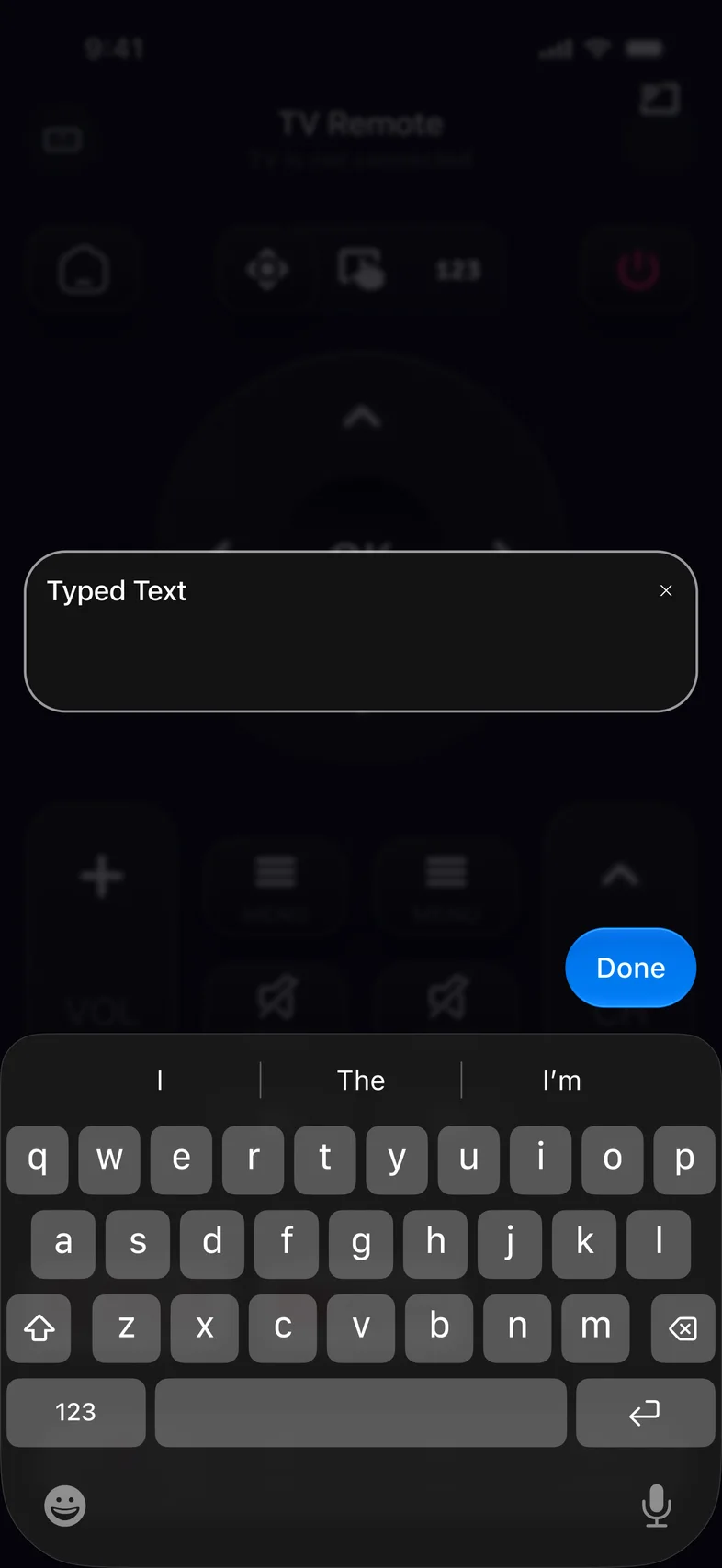
Keyboard, Touchpad & Voice
Use your phone keyboard for searches, the touchpad to glide through menus, or the mic to say it.
- Phone keyboard. Type titles, email addresses and Wi‑Fi passwords on the keyboard you already know, instead of letter by letter with arrows.
- Touchpad. Swipe to move the highlight and tap to select. Long rows of apps and titles go by in one gesture.
- Voice search. Tap the mic and say a title, an actor or an app. It works even when the TV’s own remote has no mic button.
TV Apps
See the apps installed on your TV, pin favorites and open them straight from your phone.
- The whole list in your hand. Every app and channel installed on the TV, shown on your phone with its name and icon.
- Favorites on top. Pin the apps you open every day so they are the first thing you see.
- Search by name. Type a few letters to find an app instead of scrolling past rows of recommendations on the TV.
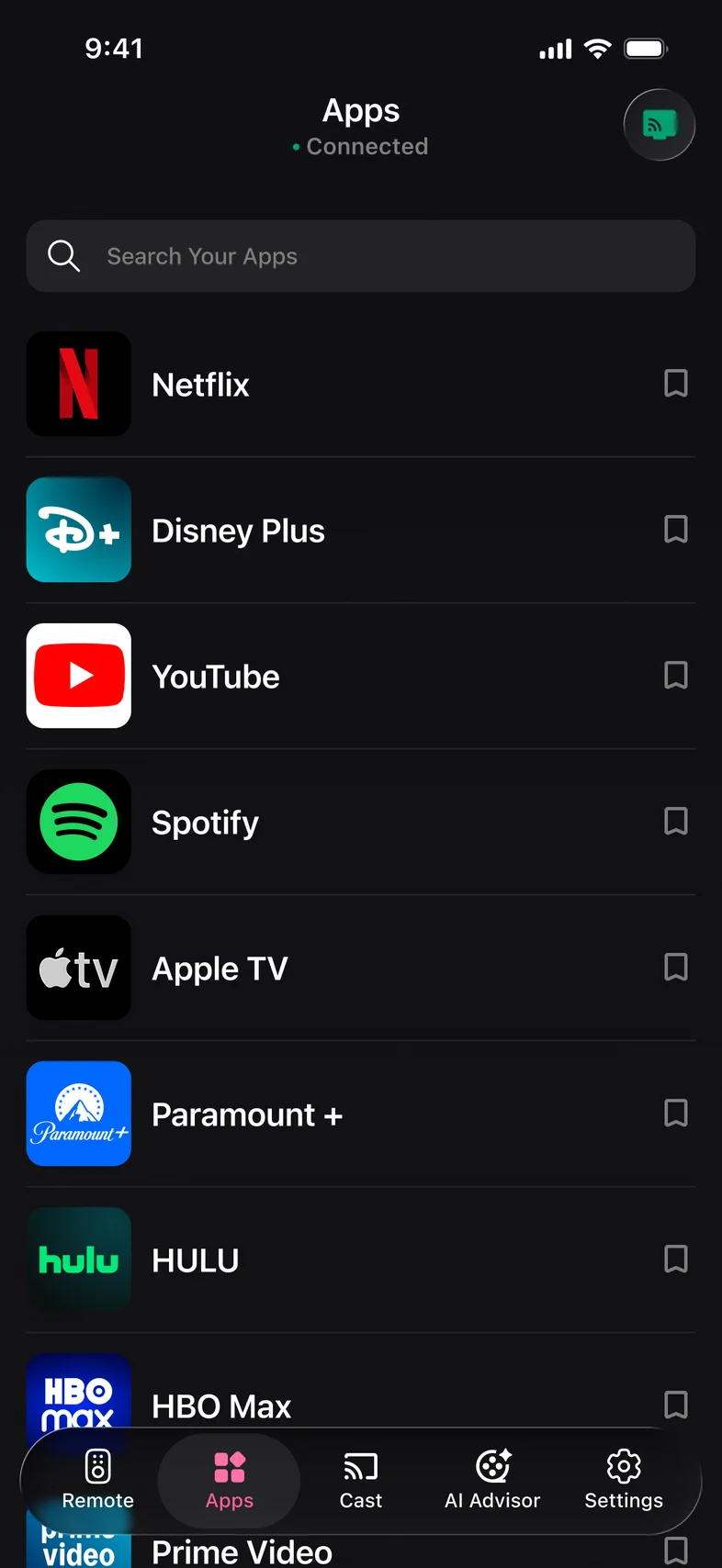
The whole list
Check your TV →Remote
- Directions, OK, Back, Home and Menu
- Volume, mute and channels
- Play, pause, rewind and fast forward
- Number pad
- Power, on TVs that stay on Wi‑Fi in standby
- A layout made for each TV brand
Typing and search
- Phone keyboard for searches and passwords
- Touchpad for swiping through menus
- Voice search with the phone’s microphone
Apps
- List of the apps installed on the TV
- Favorites pinned to the top
- Shortcuts to streaming apps on the remote screen
Phone to TV
- Screen Mirroring with sound on the TV
- Photo Cast and Video Cast from your gallery
- AI Advisor: what to watch, by mood and genre
Around the remote
- Finds TVs on your Wi‑Fi, no codes
- Several TVs and streaming devices in one list
- Controls in the Dynamic Island while connected
- No account to create
Questions about the features
What can the Kliky app do?
It is a full TV remote on your phone, with a keyboard, touchpad and voice search, a list of the apps on your TV, Screen Mirroring, Photo and Video Cast, and AI Advisor for choosing what to watch.
Can I type on my TV with my phone keyboard?
Yes. Select a text field on the TV, open the keyboard in Kliky and type. It works for searches, sign-in screens and Wi‑Fi passwords.
Does voice search work if my TV remote has no microphone?
Yes. Kliky uses the microphone in your phone and sends what you say to the TV’s search.
Can I open Netflix or YouTube on the TV from the app?
Yes, if the app is installed on the TV. The Apps tab lists what is on your TV, and a tap opens it.
Can I show my phone screen or photos on the TV?
Yes. Screen Mirroring shows the whole phone screen with sound on the TV, and Cast sends photos and videos from your gallery.
Do all features work on every TV?
The remote works on every supported smart TV and streaming device. What else a TV accepts, such as a keyboard or mirroring, depends on its software; the compatibility checker shows it for yours.
Try every feature on your own TV
Scan to download Kliky for iPhone and Android.