


Use Your Phone as a TV Remote Control

Every button of your TV remote on your iPhone or Android: D‑pad, volume, channels and playback, plus a layout made for your TV brand. Works over Wi‑Fi.

Download on the App StoreGet it on Google Play
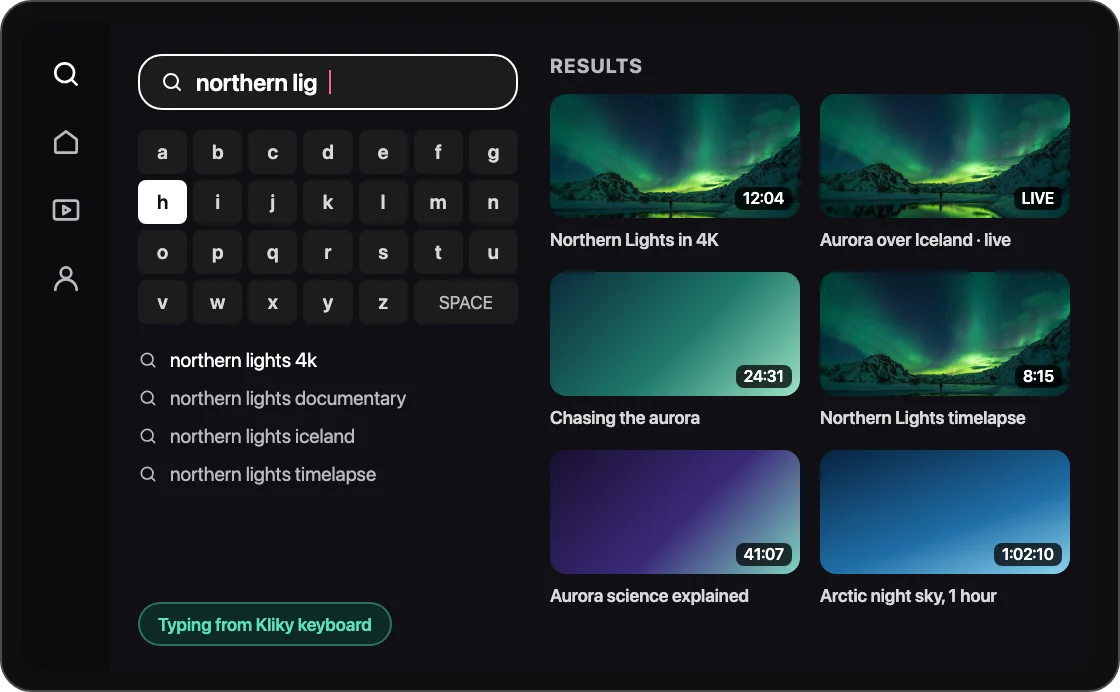
TV screen controlled from the Kliky remote on a phone
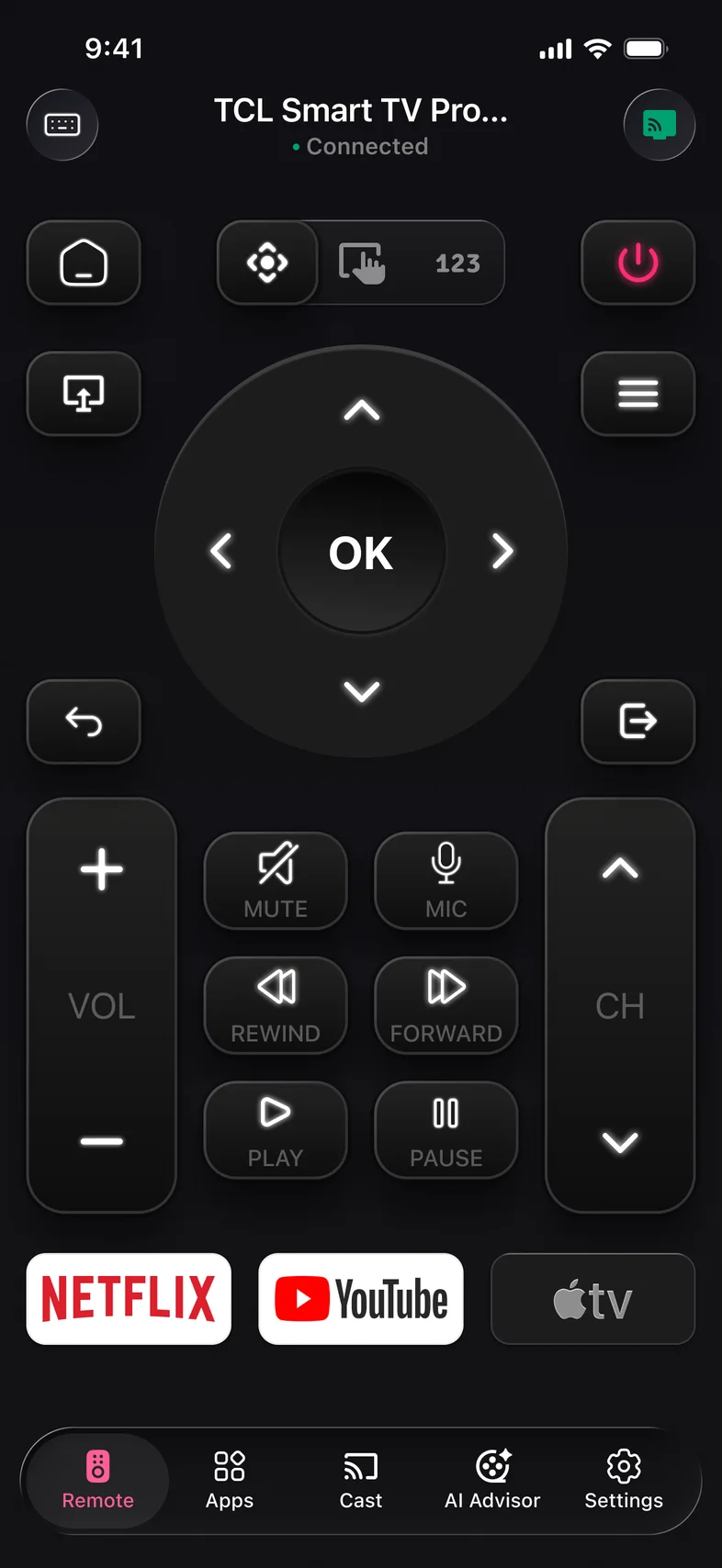
Kliky app: TV remote with D-pad, volume, channels and app shortcuts

Why use Kliky as your TV remote

  • The whole remote

    D‑pad and OK, volume, channels, mute, home, back, menu, input, play and pause, plus a number pad.

  • A layout for your TV

    Samsung, LG, Sony, Roku, Fire TV, Philips, Hisense, Vizio and Google TV each get a familiar button layout.

  • Touchpad, keyboard and voice

    Swipe to move around menus, type searches with your phone keyboard, or tap the mic and say it.

How to use your phone as a TV remote

  1. Step 1

    Join the same Wi‑Fi

    Your phone and TV need to be on one home network.

  2. Step 2

    Pick your TV

    Kliky finds TVs on your network and lists them by name.

  3. Step 3

    Enter the code from the TV

    Type the PIN shown on the TV screen once. Kliky remembers it.

Pair with a code or one tap on the TV

Kliky pairs the way your TV expects. You do it once; next time the remote reconnects on its own.

Code or PIN

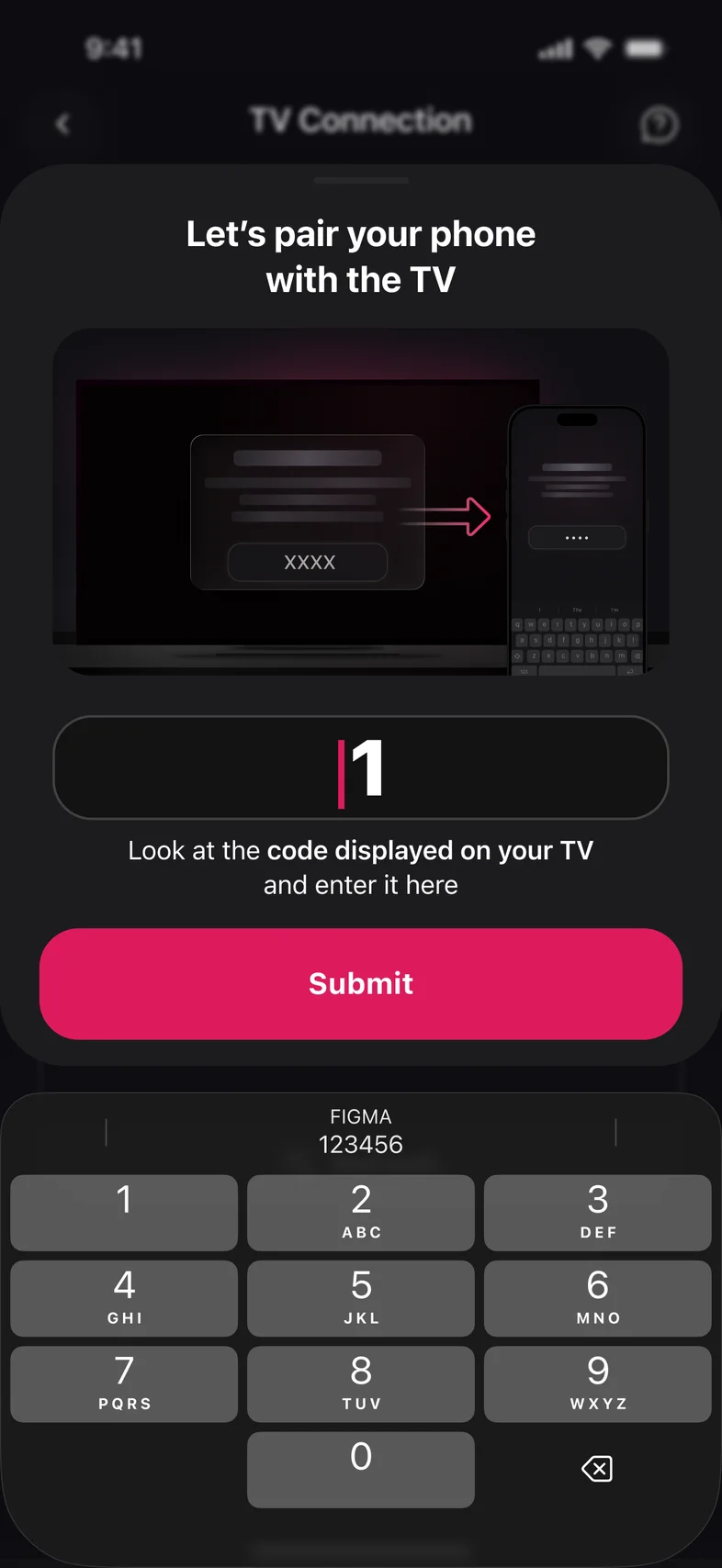
The TV shows a short code. Type it into Kliky and tap Submit.

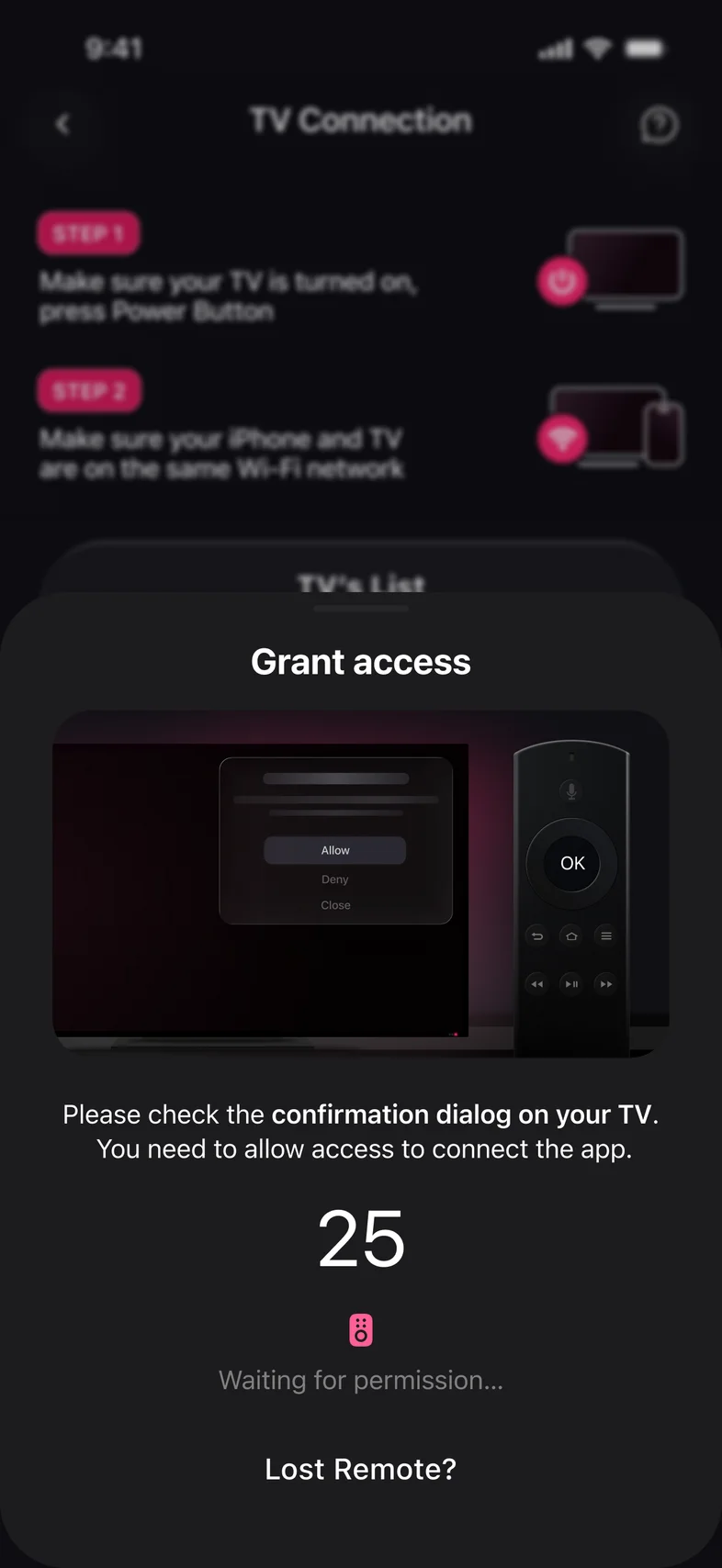
Grant access

Other TVs ask to allow the connection. A countdown in Kliky shows how long you have to press Allow.

Kliky app: enter the pairing code shown on your TV
Code or PIN
Kliky app: Grant access prompt with a countdown
Grant access

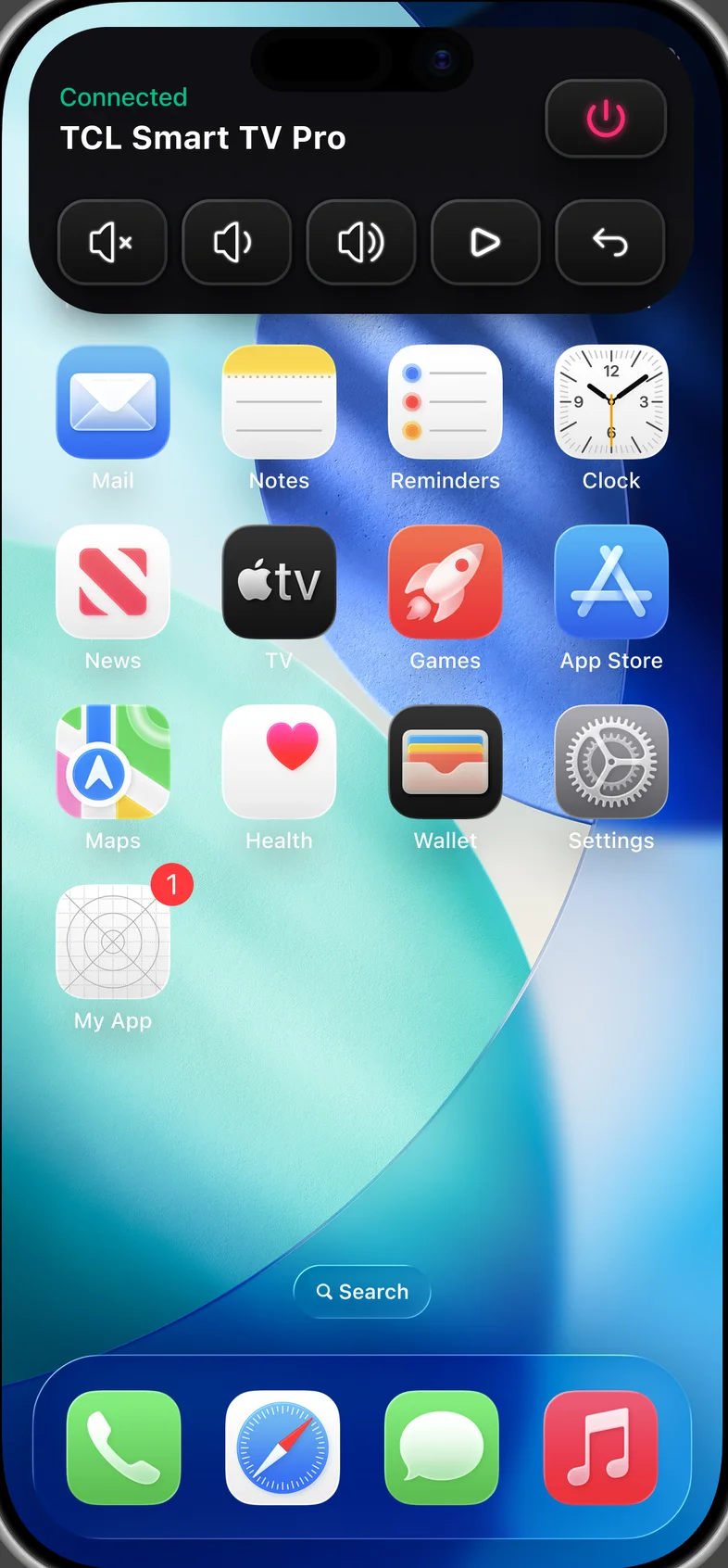
Control the TV from the Dynamic Island

While Kliky is connected, a Live Activity keeps the main buttons at the top of your iPhone. Turn the volume down or pause without opening the app.

  • Volume, mute, play and back in the Dynamic Island
  • Power button and connection status
  • On the lock screen while Kliky is connected
iPhone Dynamic Island showing Kliky controls: mute, volume, play and back

What a phone remote can do

Kliky puts every button of a standard TV remote on your phone: the D‑pad and OK, volume and channels, mute, home, back, menu, input and power. A number pad sits one tap away for channel numbers.

It talks to your TV over your home Wi‑Fi, so you don’t need line of sight and you don’t need an infrared blaster in your phone.

Pairing with your TV

Open Kliky on the same Wi‑Fi as your TV and pick it from the list. Depending on the brand, the TV shows a PIN or a code to type into Kliky, or asks you to allow access on the TV. Do it once and you’re connected. Next time Kliky reconnects on its own.

Touchpad, keyboard and voice

Switch to the touchpad to swipe around menus instead of pressing arrows. When a search box is open on the TV, use your phone keyboard to type, or tap the mic and say what you’re looking for.

Streaming app shortcuts

Netflix, YouTube and Apple TV sit right on the remote screen. The Apps tab lists every app installed on your TV, so you can open it without scrolling through the TV menu.

Remote control questions

Do I need an IR blaster?

No. Kliky controls your TV over Wi‑Fi, so any iPhone or Android phone works.

Which TVs does it work with?

Smart TVs and streaming devices from Samsung, LG, Sony, Roku, Fire TV, Apple TV, Android TV, Google TV, Vizio, Hisense, TCL, Philips and more. Use the TV Compatibility Checker to check yours.

Can I control more than one TV?

Yes. Each TV and streaming device on your Wi‑Fi appears in the list, and you switch between them in a tap.

Why doesn’t Kliky find my TV?

Kliky only sees TVs on the same Wi‑Fi network as your phone. Check that the TV is on, that neither device is on a guest network, and that Kliky has permission to find devices on your local network.

Leave the plastic remote on the sofa

Scan to download Kliky and control your TV in under a minute.

Download on the App StoreGet it on Google Play
Scan to download