 Kliky
Kliky

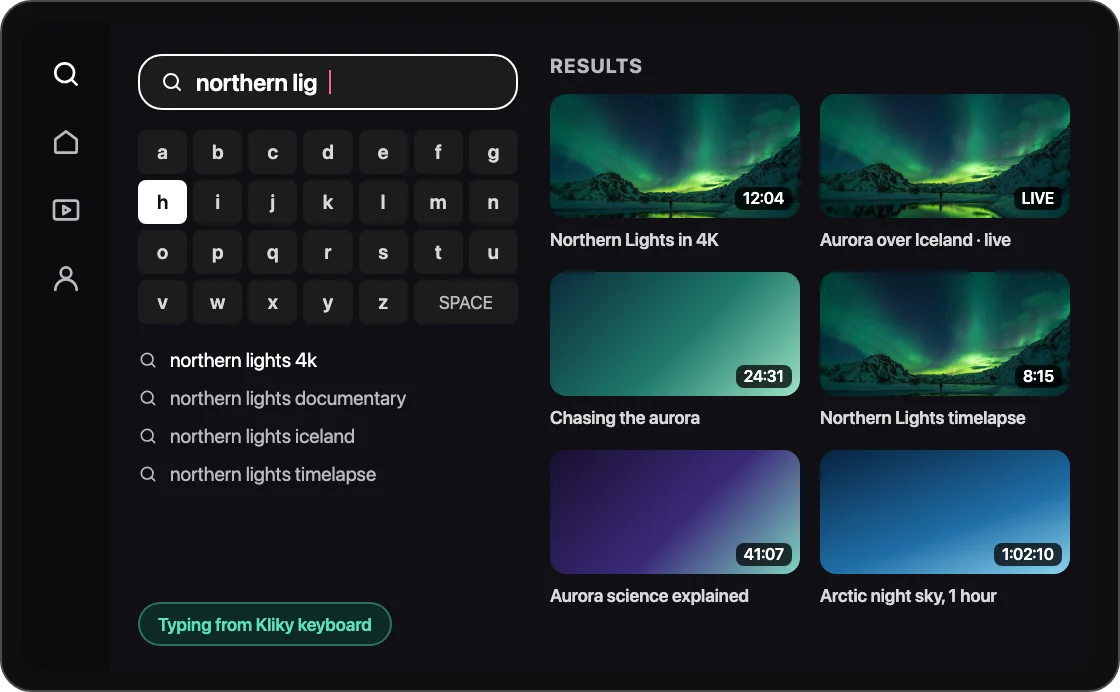
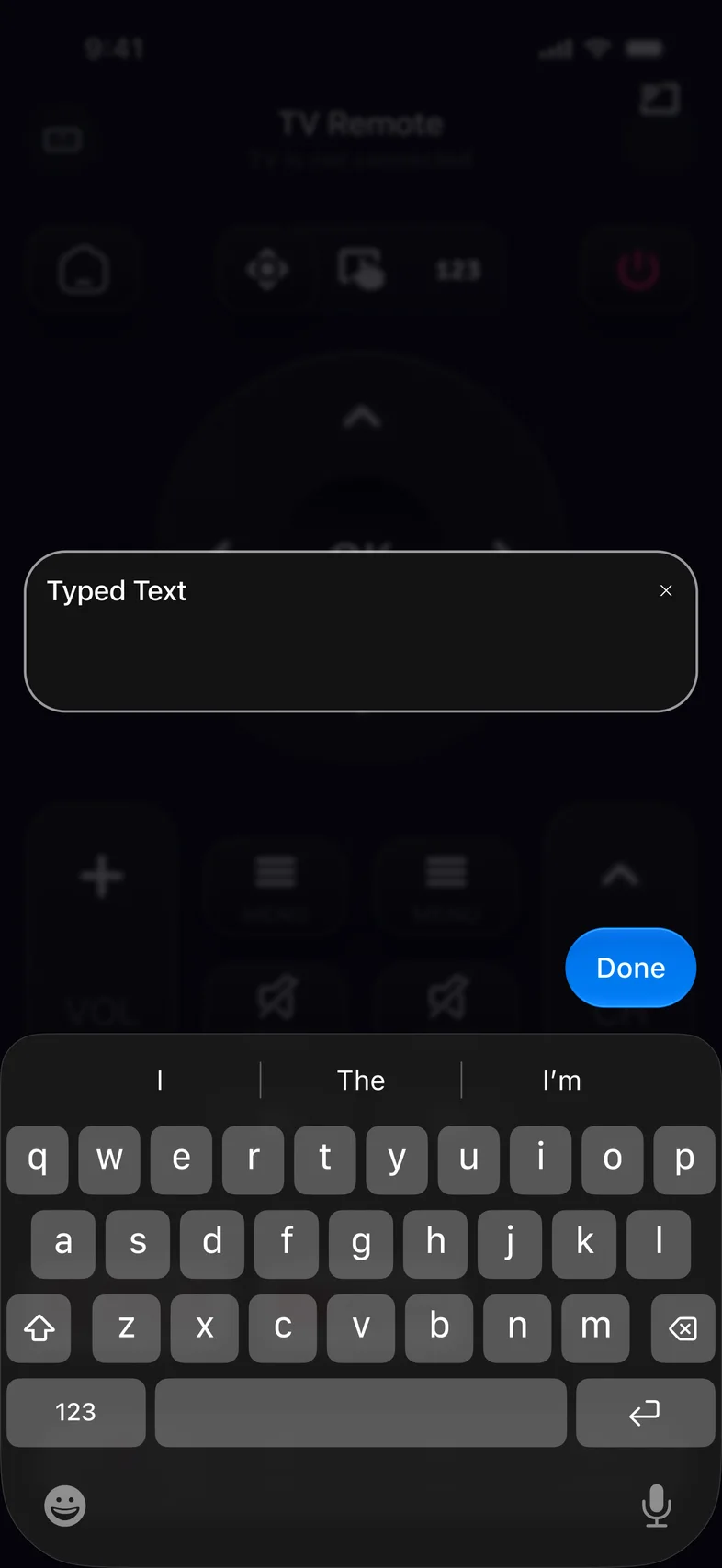

Typing on a TV without the on-screen keyboard
A TV’s on-screen keyboard makes you walk a cursor to every letter. With Kliky, select the text field on the TV, open the keyboard in the app and type as you would in a message. This is most useful for the long things: a Wi‑Fi password, an email address when signing in to a streaming app, or a full title in search.
The TV has to be waiting for text first. If nothing appears, select the field on the TV again. A few TV apps use their own keyboard and ignore text from outside; in those, the touchpad or the arrows still work.
Using the touchpad
Switch the remote to the touchpad and swipe in the direction you want to move; tap to select. It replaces repeated presses of the arrow buttons, which helps on Home screens with long rows and in apps with large grids of titles.
Voice search from your phone
Tap the mic in the remote and say what you are looking for. Kliky uses the phone’s microphone and sends the words to the TV’s search, so a TV that shipped with a simple remote without a mic button gets voice search too. The app asks for microphone access the first time.
When it helps most
- Setting up a new TV or moving it to a new Wi‑Fi network.
- Signing in to Netflix, YouTube or another app with an email and password.
- Searching for a title with a long or unusual name.
- Browsing the web on the TV, where addresses are painful to enter with arrows.